
How to Run PR From ChatGPT, Claude or Gemini With Propel MCP: A Step-by-Step Guide
Type this into Claude: "Using Propel, find 8 US journalists who wrote about AI in fintech in the last three months, with the story that makes each one relevant." You get real reporters, dated stories, and an intro for each one if you ask.
Or ask general AI the same question and you get reporters who changed beats a year ago. Other PR tools have opened a small window into AI, usually a database search.
So what if your AI tool knew which reporters cover your beat right now? And what if it could take your story from the first idea to a ready pitch, without leaving the chat?
That's why we're delighted to introduce Propel MCP - the first PR software to bring the entire PR workflow into ChatGPT, Claude and Gemini: discovery, research, media lists, pitch drafts and reporting, all in one conversation.
You can read the full announcement in our press release: Propel AI Introduces Propel MCP.
Learn more about Propel MCP at Propel-ai.com/mcp
This guide shows you how MCP works in practice. We'll connect Propel to an AI assistant, then take one real story from idea to a pitch draft: find the right journalists, research their coverage, check what to reference, write a personalized intro and draft the pitch.
Quick video walkthrough before we get started:
What is Propel MCP?
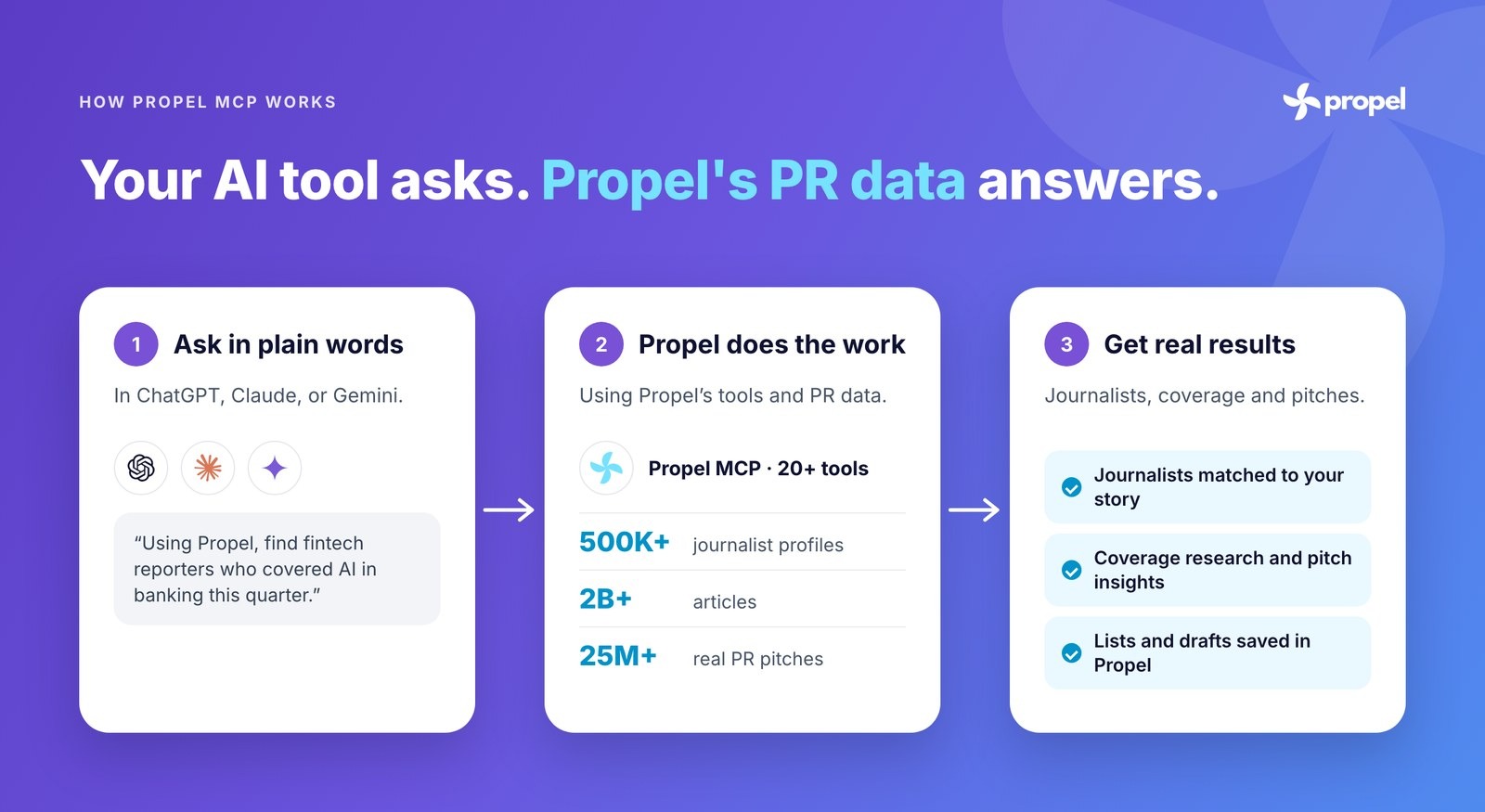
MCP (Model Context Protocol) is an open standard that lets AI assistants use outside tools and data. Propel MCP is Propel's connector for it. Once it's added, your AI assistant can call 20+ Propel tools to search journalists and outlets, read coverage, check your pitching history, build media lists, save pitch drafts and report on results.
You keep asking in plain words. The difference is what happens behind the answer.
Before you start
You need two things:
- A Propel account with MCP access. An admin on your Propel account turns it on: go to Settings → Users, find the team member and switch on the toggle in the MCP column.
- An AI assistant that supports MCP connectors: Claude or ChatGPT. Gemini works for US-based Google accounts.
Complete setup steps are in our Knowledge Base: How to Add the Propel MCP.
Step 1: Connect Propel to your AI tool
In Claude
- Open Settings → Connectors and choose Add custom connector.
- Enter Propel as the name, paste the MCP URL, and choose Add.
- Choose Connect next to Propel.
- Sign in with your Propel account to approve access.
In ChatGPT
- Open ChatGPT on the web and go to Settings → Plugins.
- Select the + button and choose Add custom MCP server.
- Enter Propel as the name and paste the MCP URL.
- Under authentication, select OAuth.
- Review the permissions, confirm Create as a plugin, and sign in with your Propel account.
In Gemini: Google currently lets only US-based Google accounts add custom MCP apps. If yours is one, add Propel with the same URL.
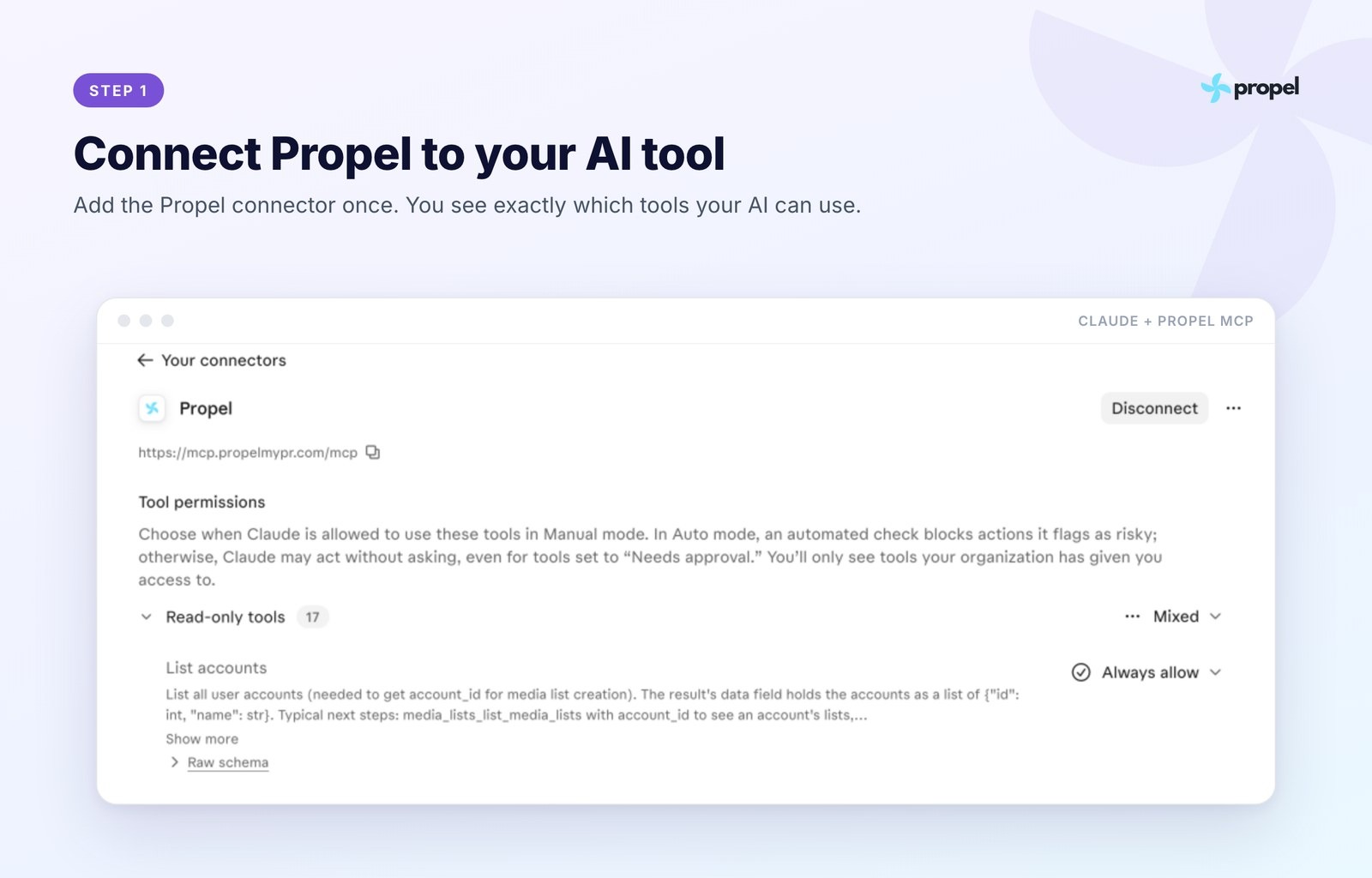
Once connected, you can see every Propel tool your assistant is allowed to use, and decide which ones run freely and which ones ask first.
Tip: In Claude, start your first prompt with "Using Propel," so it pulls from your Propel data instead of general knowledge or the web.
Step 2: Find the right journalists
Describe the story and the kind of journalist you want, the way you would brief a colleague. Be specific about beat, location, outlet tier and time frame.
We asked:
"Using Propel, find 8 US-based journalists at national outlets who have written about AI in banking or fintech in the last three months. Show them in a table with their outlet and the recent story that makes each one relevant."
Claude searched Propel's journalist and article database and came back with reporters from Axios, The Information, The Wall Street Journal, Yahoo Finance, American Banker and Fortune. Each one is matched to the dated story that makes them relevant.

The answer also explained its choices: who covers the beat most consistently, which outlet is trade rather than consumer, and which reporters it left out on purpose (one is based outside the US, another hasn't written about AI recently). That's the difference between a list and a shortlist you can trust.
Try: "I love how [journalist] covers [topic]. Find 10 journalists with similar coverage."
Step 3: Research their coverage
Before you write a word, understand what the journalist actually writes about. Pick a name and go deeper.
We asked:
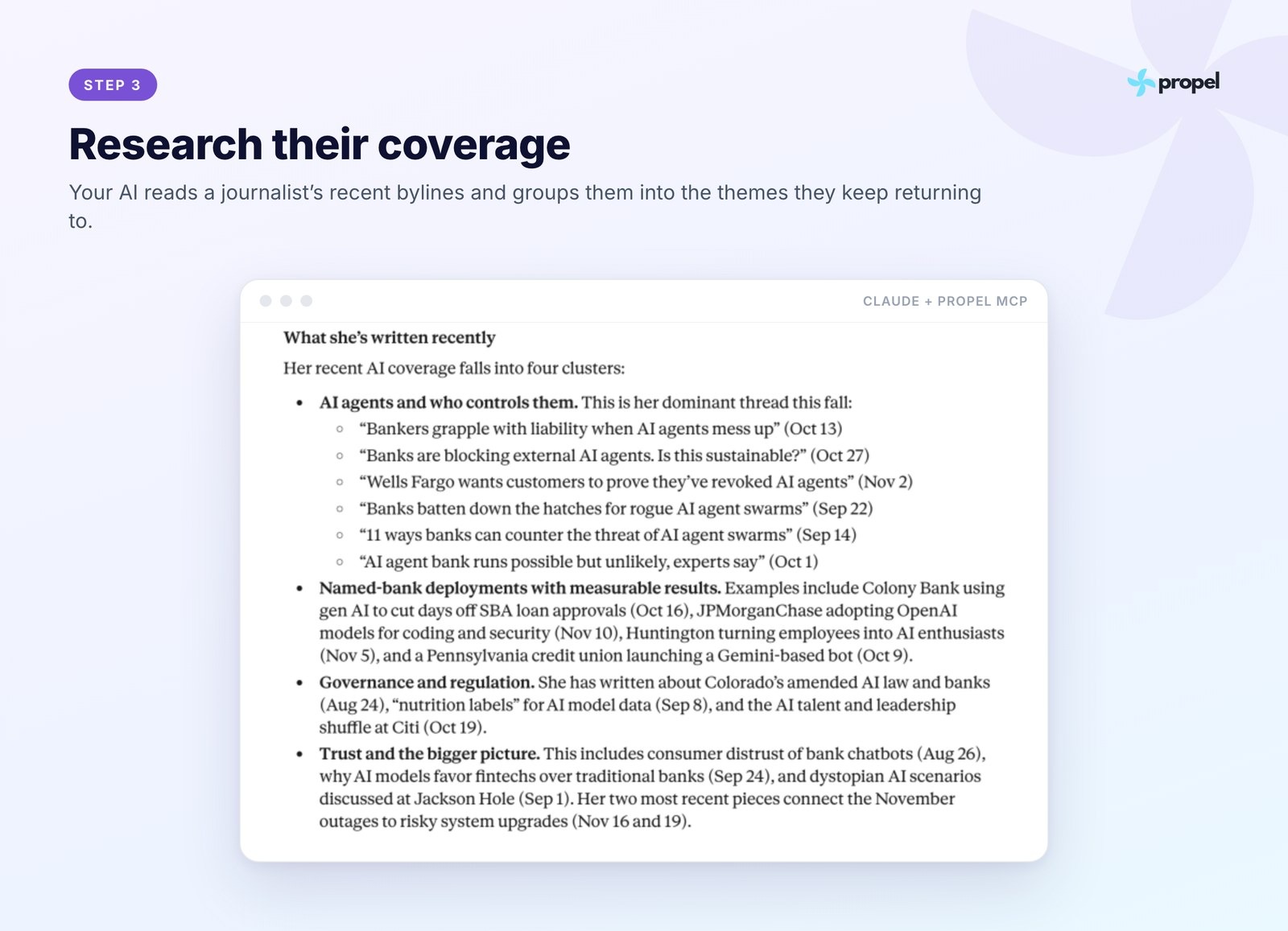
"Let's go deeper on Penny Crosman. What has she written about AI in banking recently, what angles does she favor, and what should I reference or avoid in a pitch?"
Propel pulled her recent bylines and grouped them into the themes she keeps returning to, with dates for each story.
Step 4: Know what to reference and what to avoid
Coverage research is only useful if it changes the pitch. Propel MCP turns it into practical guidance: the pieces worth referencing, the kind of source that would strengthen your story, and the mistakes that would get your email deleted.
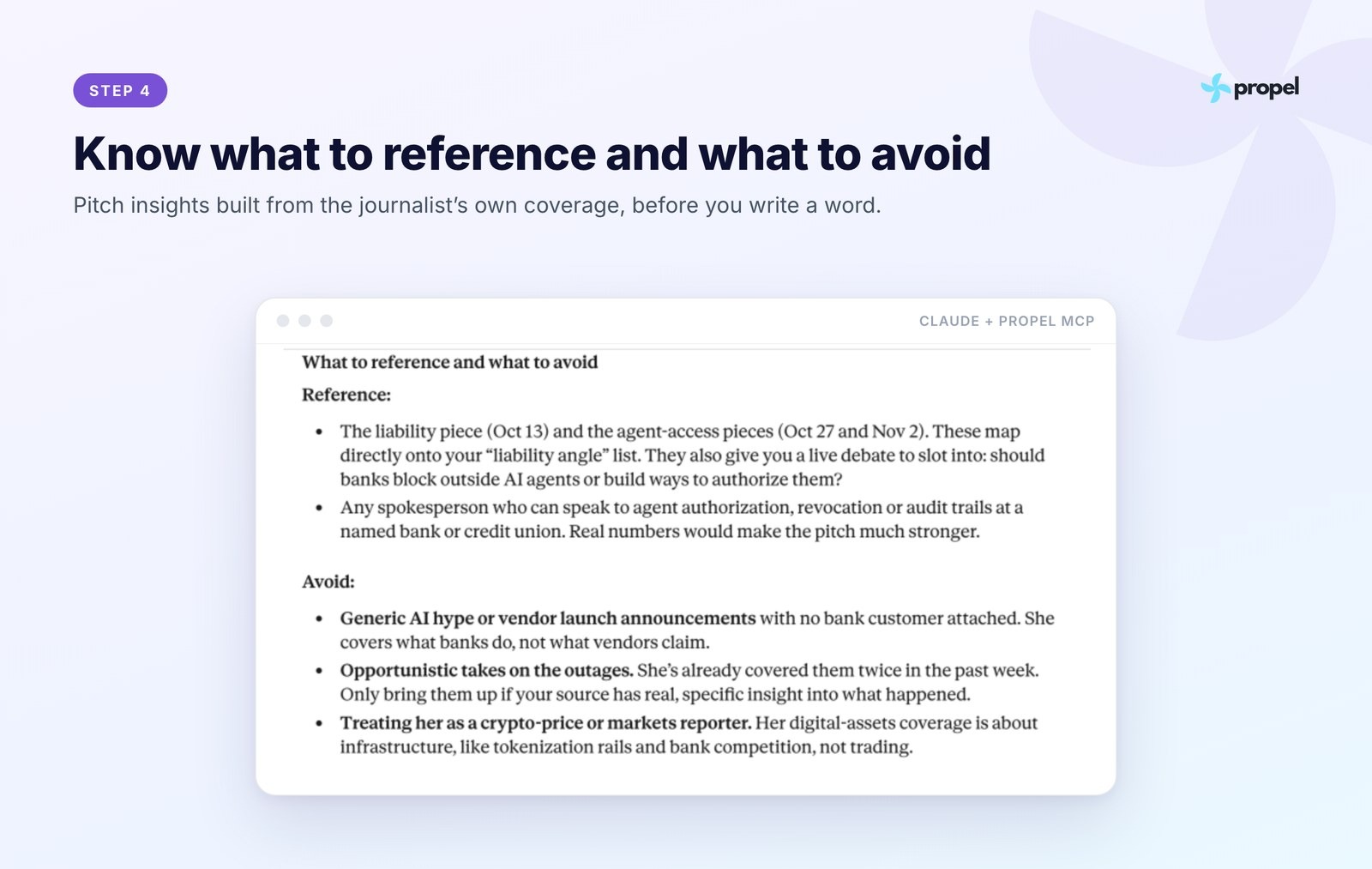
You can also check your team's history with a journalist (pitches sent, opens, replies and notes), so no one double-pitches a reporter.
Try: "Check our history with each journalist on my [list name] list, and flag anyone we've pitched in the last two weeks."
Step 5: Get a personalized intro
Next, ask for an opening line grounded in the journalist's own coverage. In our session, Propel MCP wrote an intro that references Penny's recent reporting on AI agents in banking and ties it to the open question that coverage raises.
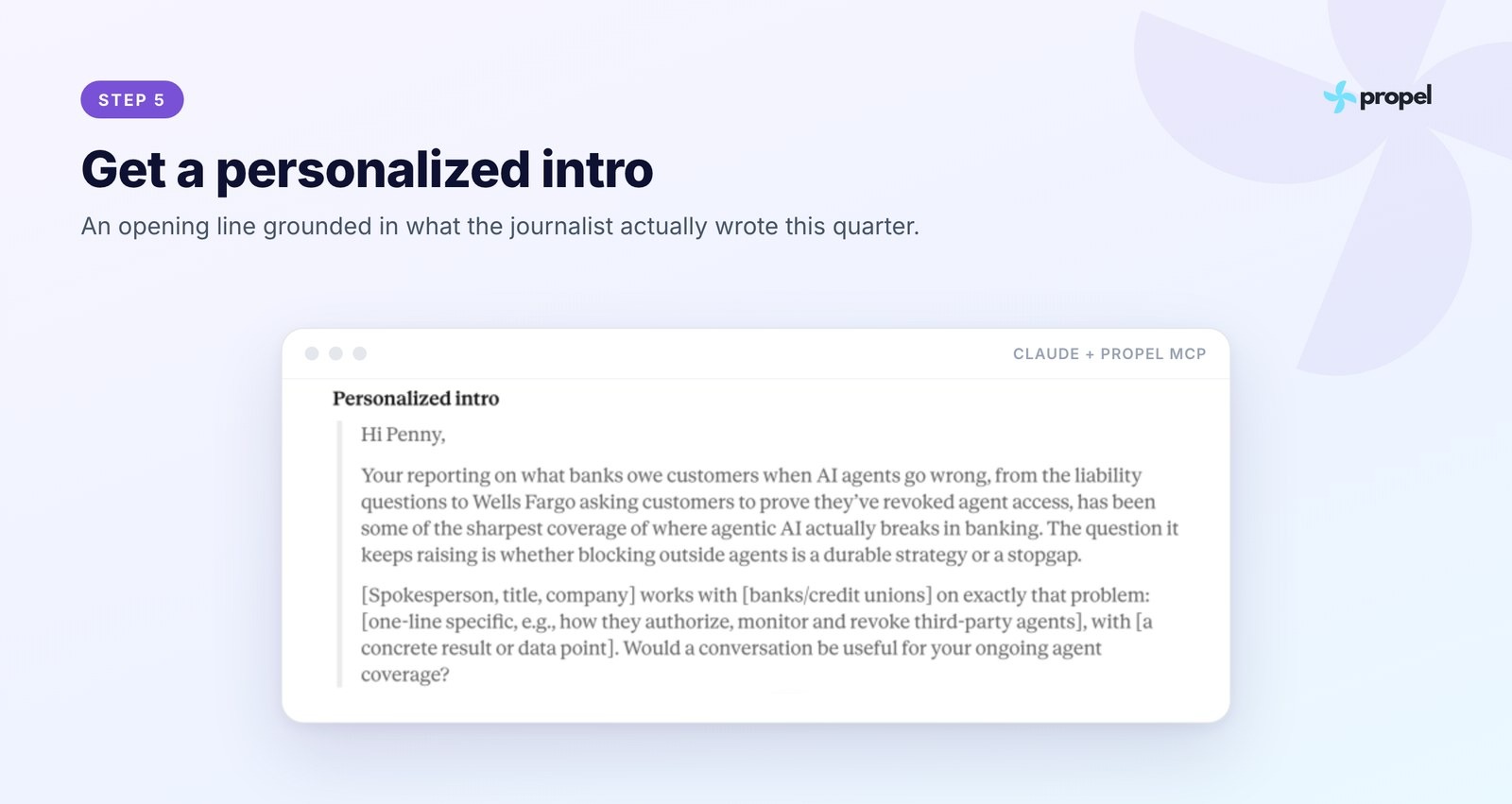
Step 6: Draft the pitch. You hit send.
Finally, ask for the full pitch. We used an example client, a bank-security startup:
"Now draft a first-touch pitch email to Penny for an example client, a bank-security startup that helps banks authorize and revoke third-party AI agents. Subject line plus a body under 120 words. Don't save anything to Propel."
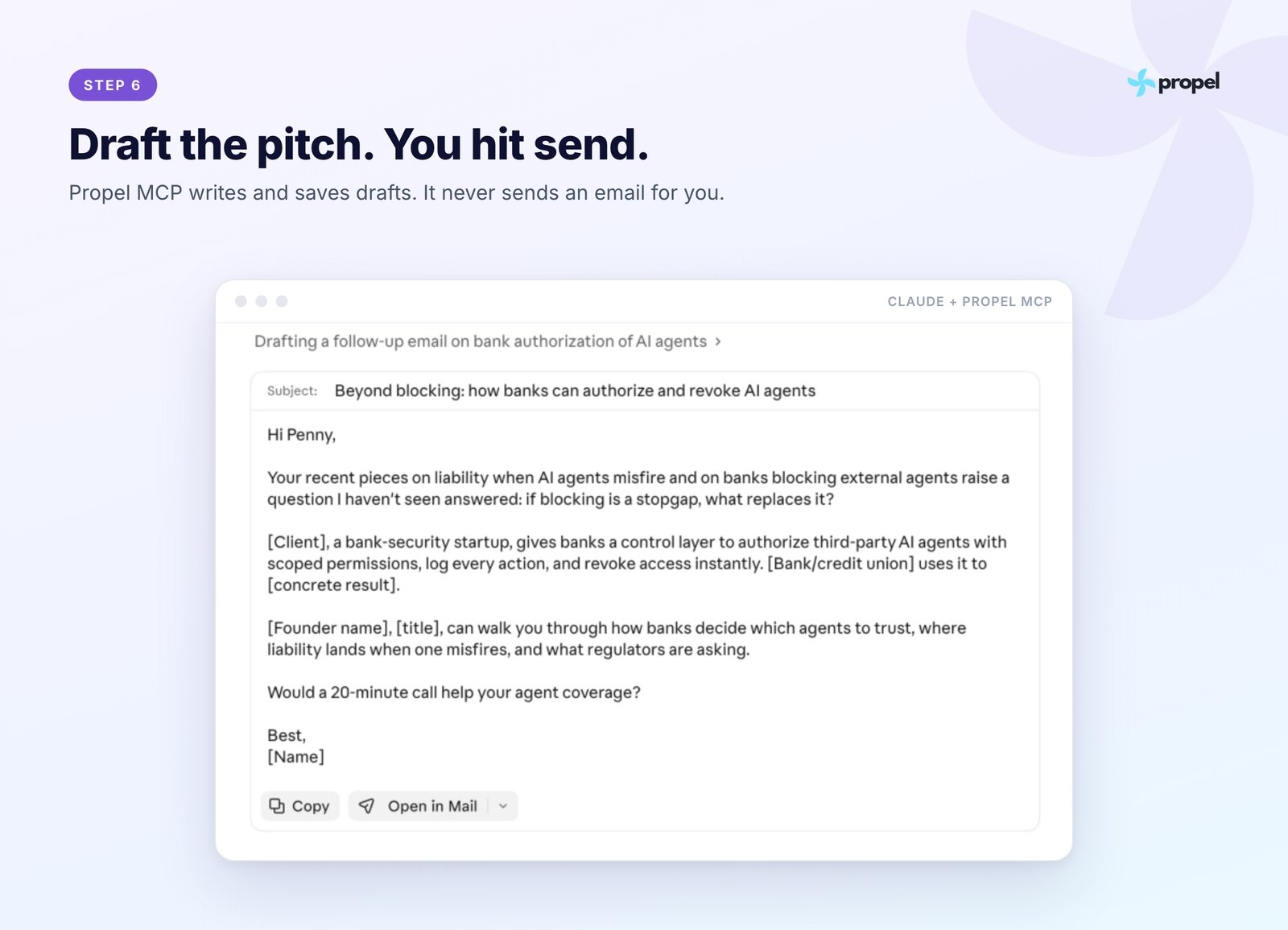
When you're working on a real campaign, ask Propel MCP to save the draft to your pitching initiative. It gives you a link to open the draft in Gmail or Outlook, so you can review it and send it yourself. Propel MCP never sends an email for you.
Note: A saved draft goes to everyone on the media list, so write it with the whole list in mind.
Step 7: Build the list and track results
The same conversation can keep going:
- Build a media list: "Create a media list called Q1 Launch under the [account] account and add the journalists we just found." Propel shows you what it's about to create and waits for your approval.
- Report on performance: "How did our pitching perform last month compared with the month before?" You get sends, opens, replies, published articles and backlinks for any date range.
- Track your Story Funnel: "Show me the Story Funnel for the [account] account."
Bonus Tip: See Propel MCP Steps In Your AI
Every answer can be traced. Open the tool trail in your assistant to see each search it ran in Propel, step by step.
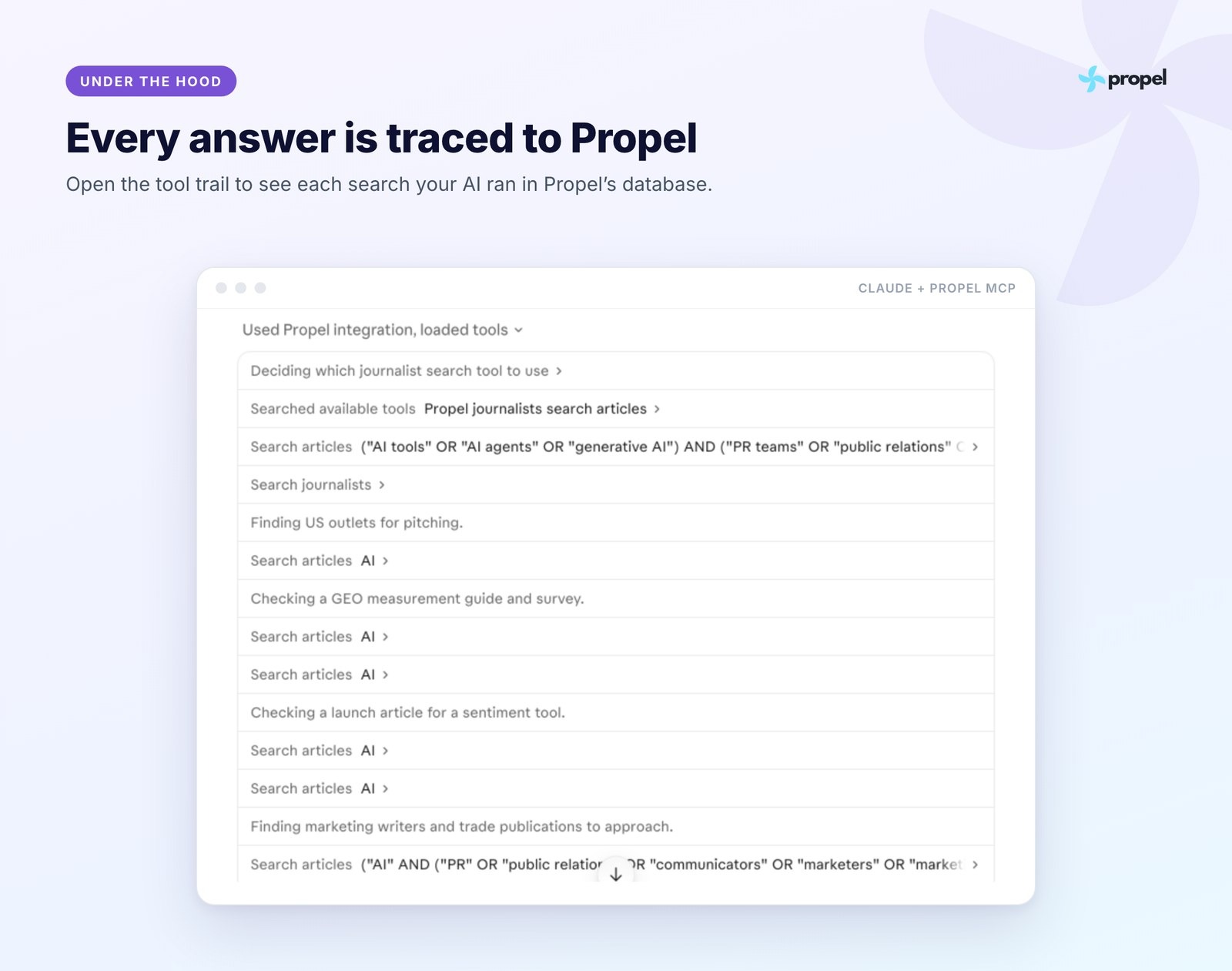
- Propel MCP only ever acts with your own Propel permissions.
- Most tools only read data. The write tools (create account, create media list, add journalists, create contacts, add contacts to a list, save pitch draft) need "Allow changes in Propel", show a preview and wait for your confirmation.
- In Claude, you can set each tool to Needs approval or let it run. A good starting point: let read-only tools run freely and keep write tools on Needs approval.
- Your admin controls who has MCP access.
Prompts to start with
- Find [beat] journalists in [country, state or city] who write for [tier 1 / trade / regional] outlets.
- What has [journalist] written about in the last three months? Summarize their main themes.
- Based on [journalist]'s recent coverage, what should I reference in my pitch, and what should I avoid?
- Give me five story angles for [your news], tailored to [beat] journalists.
- Write a personalized intro for [journalist] based on their recent coverage.
- Save this pitch as the draft for my [pitching initiative] initiative.
The full prompt library is in the Propel Knowledge Base: Propel MCP Prompt Library. For everything Propel MCP can do, see What You Can Do with the Propel MCP.